


Outlook’s OST means Offline Storage Table. It is a very crucial file. This file (.ost) is used in Exchange Server environments. It is typically large in size. Let’s decode its creation. The .ost file is created when the user configures Outlook to work in caching exchange mode. It works in synchronization with the mail server. This data file (.ost) stores vital email messages, crucial contacts, events and other mailbox folders. OST also provides access to mailbox folders even without Internet connectivity. It is heavily encrypted. The .ost file is associated with a particular profile. What does it mean? It is opened with the same profile with which it was created. For enhanced data safety, this data file is secured with a MAPIEntryID GUID key. All these features provide multi-layer security cover to the data saved in OST.
Every Outlook user comes across a scenario that demands the conversion of .ost file to PST format. For instance, migration of data files from one device to another demands such conversion. Recovering vital file folders from orphaned OST also demands such conversion. Some other scenarios in which such conversion is required include OST file corruption and unavailability of the Exchange server.
It may be noted that there is no direct tool provided by Microsoft to aid such conversion. But there are some built-in functionalities. A user can utilize the Import/Export Wizard and Drag & Drop method. But these ways involve complex steps. To avoid complex manual process, the best way for such a security-conscious user is the Online OST Converter. There are multiple benefits of employing the last method.
To earn more knowledge about the topic, checkout our guide titled “Best Methods to Convert OST to PST for Free on Windows 11”
Common Reasons that Require OST to PST Conversion:
Some scenarios that need such conversion include the following:
- In the event of Exchange server maintenance
- When the Exchange server has crashed
- Migration to a new device
- Shifting to a new email client
- Creating the backup of older email messages, contacts and other mailbox folders
- When the Outlook data file (.ost) has grown too large
- To recover vital mailbox folders from a damaged OST
- To recover folders from an orphaned as well as an inaccessible data file (.ost)
- In the event of archiving older emails from an oversized OST
Best Methods to Convert OST to PST for Free on Windows 11
After unearthing possible scenarios that need such conversion, let’s move on to explore ways to perform this task. Checkout the below guide.
1: Import/ Export Wizard: First and foremost, launch the app. Login with the same credentials that were used to create the .ost file. After this, follow the steps below:
- Browse Files.
- Then click Open & Export.
- After this press ‘Import & Export’ tab.
- Now choose ‘Export to a file’ option. Then click ‘Next.’
- Now the user will come across a box with ‘Export to a File’ name.
- Select Outlook Data File (.pst) option. Click Next.
- Select folders. Check Include sub-folders option as well. Hit on Next.
- Now go to the folder where you need to export the new PST files.
- Choose ‘Replace duplicates with items exported’ option. (This action avoids data duplication).
- After this click the ‘Finish’ tab.
2: Drag & Drop Method: It is another simple method to perform this task. The user needs to perform below actions:
- Create a fresh, black PST file.
- After this choose the targeted .ost mailbox folders (data files that require to be exported).
- Now drop those selected folders to the newly created PST file.
(Note: Experts allow this method in case only a few folders are involved)
Limitations of the Manual Methods:
- The above methods are time-consuming
- They need to be executed by a person with in-depth knowledge of stages involved
- These methods may not work on an inaccessible OST
- Manual methods may not work on a damaged OST
- Manual methods will not work on a file affected with a malware attack
- Manual methods pose a threat to data saved in the file
What if Manual Methods Fail?
We have explored circumstances where manual methods may fail to yield results. What to do next? How to access data saved in orphaned/ inaccessible OST? Such type of questions engrossed the mind of the user. The answer to these queries lies in a professional converter tool. The user can employ software like Stellar Converter for OST. This tool is empowered with a friendly GUI. It doesn’t require any expert knowledge.
What if the User Hesitates in Using a Third-party Software?
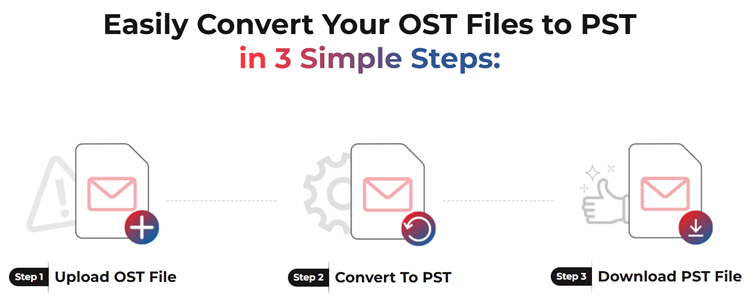
There are multiple users who are concerned about data safety. For them, an online OST converter is the best option. This tool has multiple benefits. Experts recommend platform like Stellar Online OST Converter. It offers many benefits. Firstly, it works without Outlook or Exchange configuration. Secondly, it has a friendly interface. Just upload an OST, convert, and download the converted data file (.pst) to any device. Thirdly, it doesn’t need an installation and lengthy manual steps. The process is extremely simple. Even a user with no technical knowledge can perform the conversion task. The Online OST Converter consumes lesser time in comparison to other methods.
Conclusion:
We have discussed multiple technicalities linked with Outlook’s OST in the above guide titled ‘Best Methods to Convert OST to PST for Free on Windows 11.’ After exploring reasons that lead to OST to PST conversion, the post goes on to explore manual methods for such conversion. After this, the post shed light on the shortcomings of manual ways. We have also discussed such approaches will also fail in case of an inaccessible data file (.ost). What to do then? To overcome such a scenario, the user can use any third-party converter tool. But it requires software installation. Plus, the user has to pay a license fee. But many Outlook users don’t want to install any third-party software. The best solution for them is an Online OST Converter. Such software doesn’t require any installation. Software like Online Stellar Converter provides the facility of bulk and selective conversions. It is not only easy-to-use but is also capable of exporting file to different file formats.